
Keep supporters in the loop with photos and updates
A picture can tell a thousand words (and so can a thousand words!)
Your personal fundraising page is where your 100K Your Way journey can come to life, sharing updates with your supporters as you clock every kilometre.
Throughout April, we encourage everyone to keep friends and family in the loop on your progress by sharing photos or updates on what moves you’ve made as you close in on your goal. In this quick explainer article, we’ll show you how to upload a photo, description, or YouTube link in just a few clicks.
Adding a photo gallery to your individual page
Step 1: Login to your dashboard and select ‘Fundraising Page’
When logged into your dashboard,
you will be able to add a photo gallery to your individual page or your team page. You can access the dashboard via the ‘login’ icon on the top right corner of every page. If you are already logged in, your first name should appear alongside this icon, along with a drop-down menu.
From here, you can select ‘Fundraising Page’ from the menu.
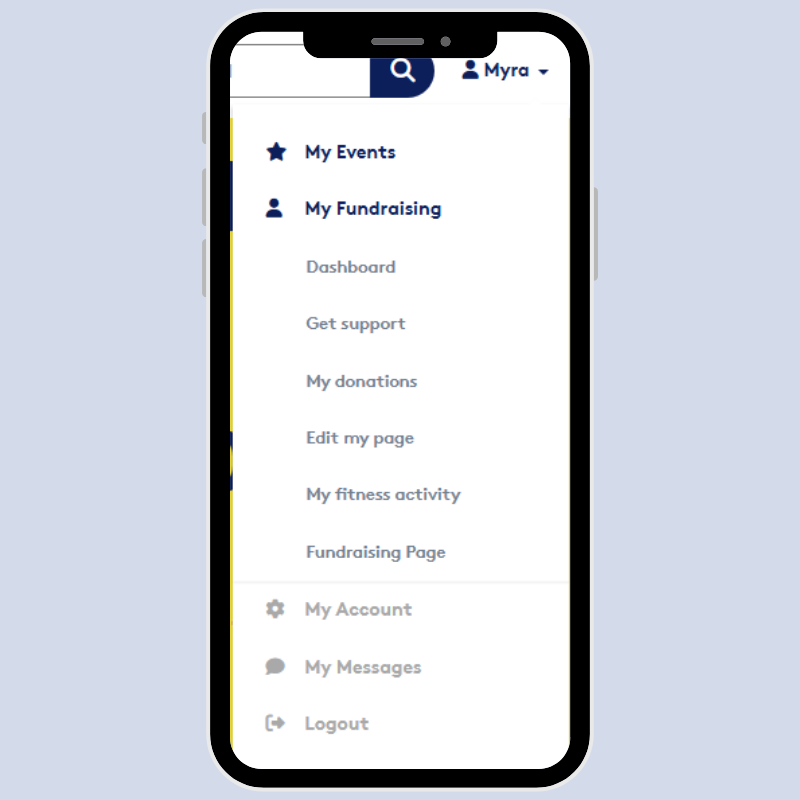
Step 2: Choose your update type
On the fundraising page, scroll to the section titled ‘My Gallery’. Press the button ‘Add an update’ where you’ll be able to select from the following options:
- Create New Post: Ideal for written updates
- Add YouTube Video: To share video content
- Add Image: To share a simple photo and caption update
Step 3: Upload your content
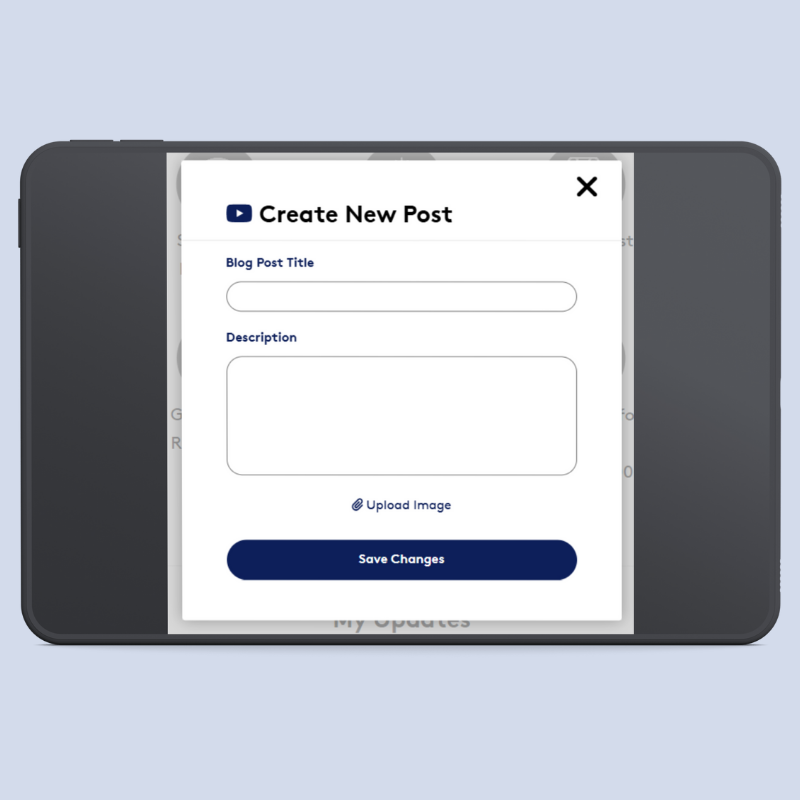
If you select ‘Create New Post’, a window will open to let you add an article with a title, description and an image. Pop in your message and select Save Changes. Then it’s ready to share! Please allow up to 15 minutes for new posts to appear on your fundraising page.
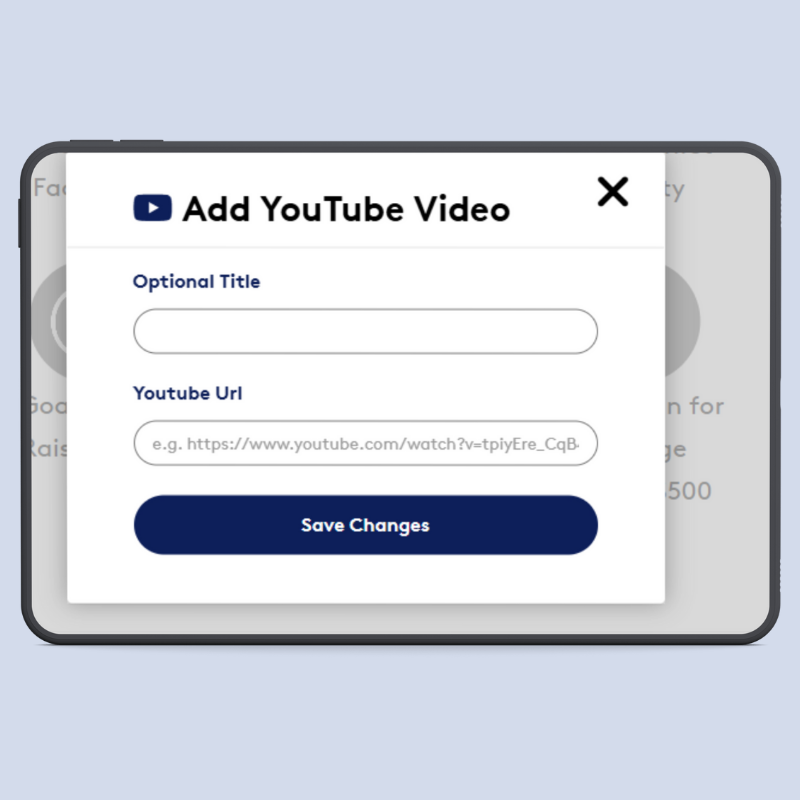
If you select Add YouTube Video, you will need to have a YouTube account and upload your video to that account first. It’s a good idea to do this in another browser window, so you can come back to your dashboard page without closing it.
Once the video is uploaded to YouTube you will need to select the ‘Share’ button, which will open a window with options to share your link. Select the ‘Copy’ button, which will copy your link to your clipboard, ready to paste in your 100K Your Way dashboard.
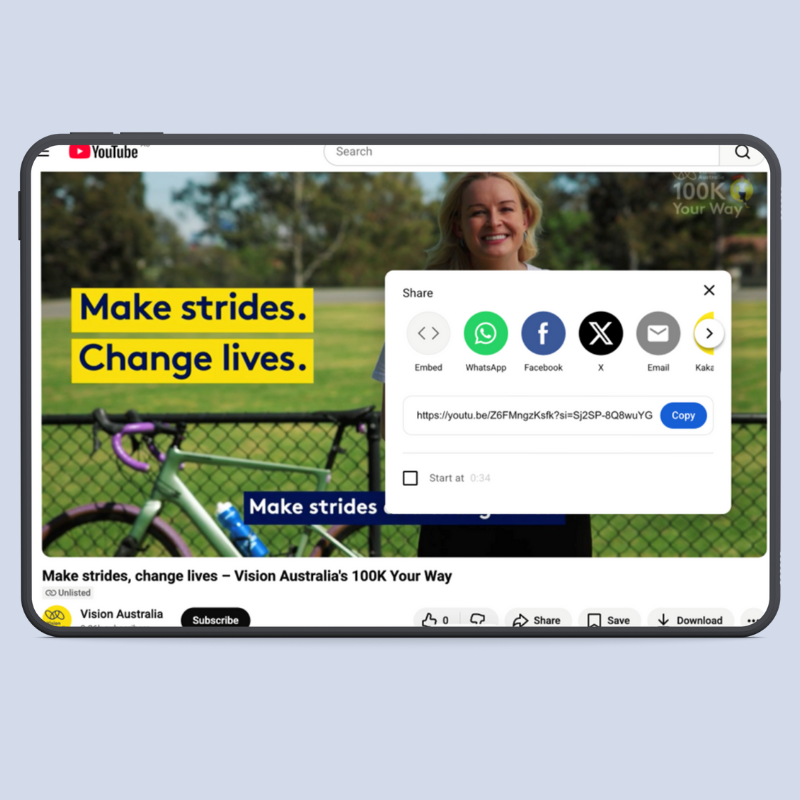
When your link has been pasted in, select Save Changes and you’re done!
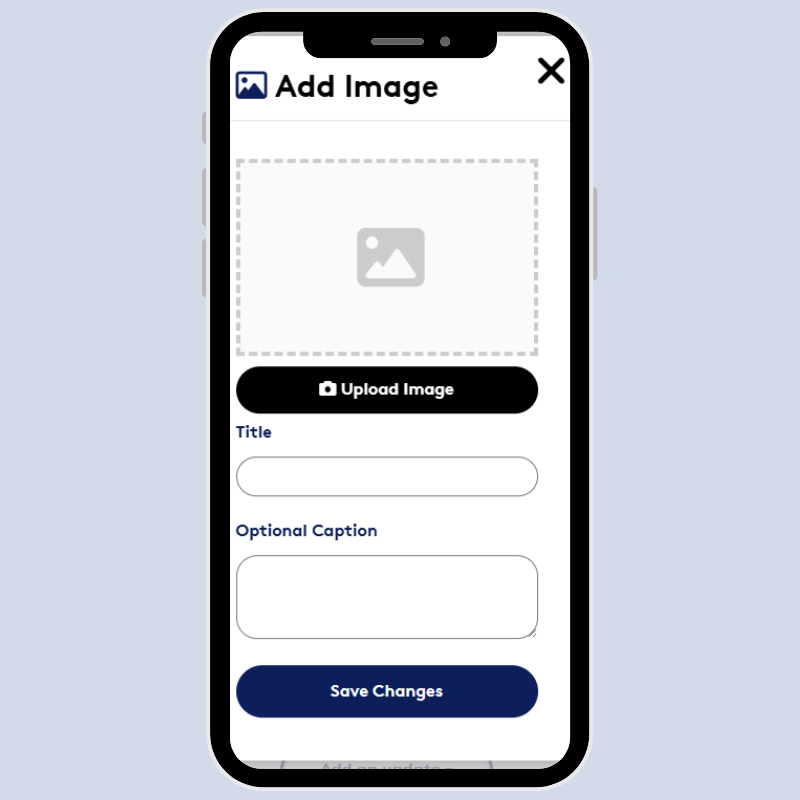
If you would like to add a photo of your moves in action, select Upload Image and find the file you wish to add. You will be given the option to rotate and crop your image, as well as add a title and caption. Select Save Changes when you’re done and it will appear on your fundraising page.
Adding a photo gallery for a team page
If you are a team captain, you can share your team updates with the same simple steps as above, using your Team dashboard. Simply select ‘My Team instead of ‘Fundraising Page’ and navigate to ‘Edit Team Page’. The instructions for uploading images and video are the same.
Help spread the word
Your dashboard is designed to make finding support easier, so be sure to check out our dedicated article on for tips on using your dashboard to start fundraising fast.
Good luck and happy fundraising!


